
When delving into the exciting world of digital image manipulation, especially in powerful tools like Adobe Photoshop, one of my favorite techniques involves the strategic application of textures and overlays. While certain photographic genres, such as food photography, demand a pristine, unadulterated presentation – where the dish itself is the star and should be showcased as cleanly and naturally as possible – other forms of photography truly blossom with the addition of artistic elements. In the realm of portraits, landscapes, and creative fine art photography, textures and overlays become invaluable assets. They possess an incredible ability to profoundly alter the mood of an image, inject depth and character, or subtly guide the viewer’s eye to highlight specific, compelling parts of a shot. This artistic approach allows for a level of creative expression that elevates a simple photograph into a captivating piece of art, adding layers of narrative and emotion.
The art of using textures in Photoshop isn’t just about slapping an image on top of another; it’s about understanding how different textures interact with your base photograph and how various blending modes can unlock a vast spectrum of creative possibilities. Textures can range from subtle grain and distressed paper effects to vibrant watercolor washes and abstract light leaks. Overlays, often transparent or semi-transparent, add elements like smoke, rain, bokeh, or lens flare, further enhancing the visual narrative. Together, they form a powerful duo for digital artists and photographers seeking to transform their work beyond standard retouching.
Transforming Your Vision: The Power of Textures and Overlays in Photoshop
Digital photography has evolved far beyond mere documentation; it’s a medium for storytelling, emotion, and artistic expression. Textures and overlays are at the forefront of this evolution, offering photographers and graphic designers a versatile toolkit for enhancing their imagery. They provide a quick yet effective way to add vintage charm, rustic appeal, dreamy ethereal qualities, or even a gritty, urban feel to any photograph. The choice of texture and its application can completely redefine the emotional impact of an image, turning an ordinary scene into an extraordinary visual experience. Mastering the application of these elements can truly set your work apart in a crowded visual landscape, providing depth and a unique signature style.
Introducing the Illusions Textures Set: A Creative Breakthrough
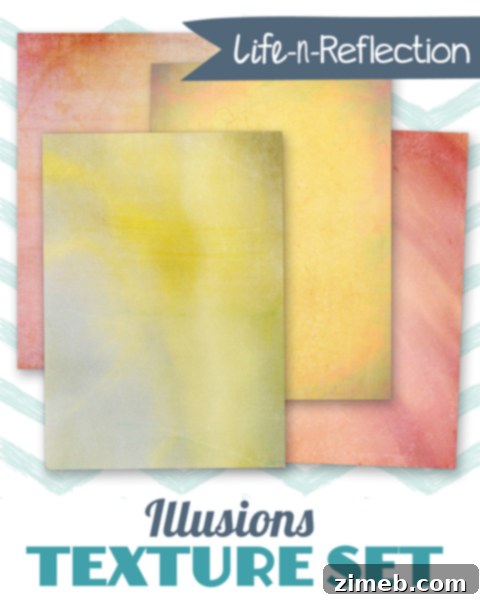
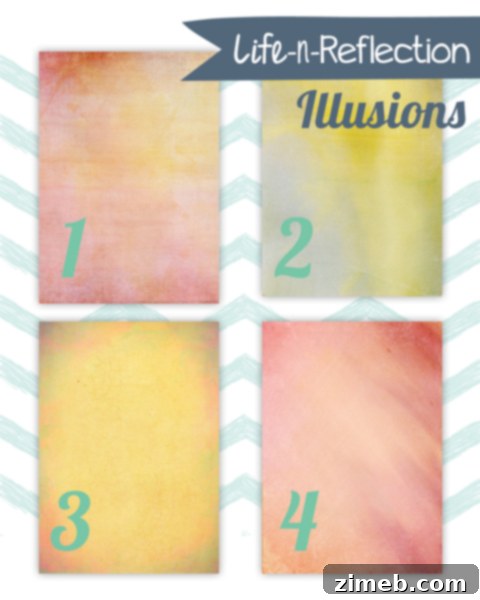
Recently, as a proud member of the Life n’ Reflection design team, I had the privilege of experimenting with their exciting new Illusions Textures set. This collection stands out due to its unique watercolor aesthetic and remarkable versatility. Unlike traditional textures that might simply add grain or scratches, the Illusions Textures introduce a soft, painterly quality that can infuse any photograph with an artistic, hand-crafted feel. The set is thoughtfully curated to provide a foundation for endless creative exploration, moving beyond simple color variations to offer a rich tapestry of stylistic possibilities. Its ability to mimic the organic flow and subtle pigmentation of watercolor paint makes it ideal for adding a bespoke, fine-art touch to your digital compositions.
While the initial set includes four distinct watercolor-inspired textures, the true magic lies in how you combine them, adjust their blending modes, and fine-tune their opacity. This isn’t just about applying a filter; it’s about layering artistic elements to craft a unique visual story. The subtle shifts in color and tone, the gentle brushstroke patterns, and the organic flow of the watercolor textures allow for an incredible degree of customization, making each application a fresh artistic endeavor. By understanding the nuances of each texture and the impact of different blending modes, you gain complete control over the final aesthetic. Let’s dive into a practical demonstration of how these textures can dramatically transform a simple image.
Step-by-Step Texture Application with Illusions Textures
To illustrate the power of these textures, I’ll walk you through a series of transformations on a single base image. This will demonstrate how each texture, applied with different blending modes and opacities, can evoke a completely new mood and aesthetic. Our starting point is a clean, sharp edit – precisely how one would want to present food, for instance. For this example, I’ve simply sharpened the image to ensure crisp details, providing a neutral canvas for our texture experimentation. This ensures that any changes we see are purely the result of the texture application, making the impact more evident.
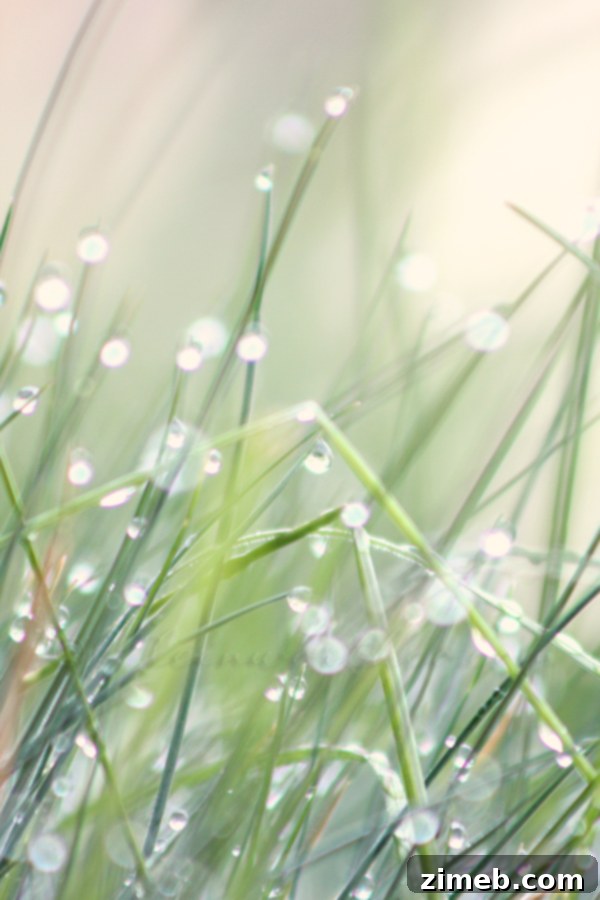
This is our pristine base image, ready for artistic transformation.
Texture #1: Subtle Enhancement with Soft Light
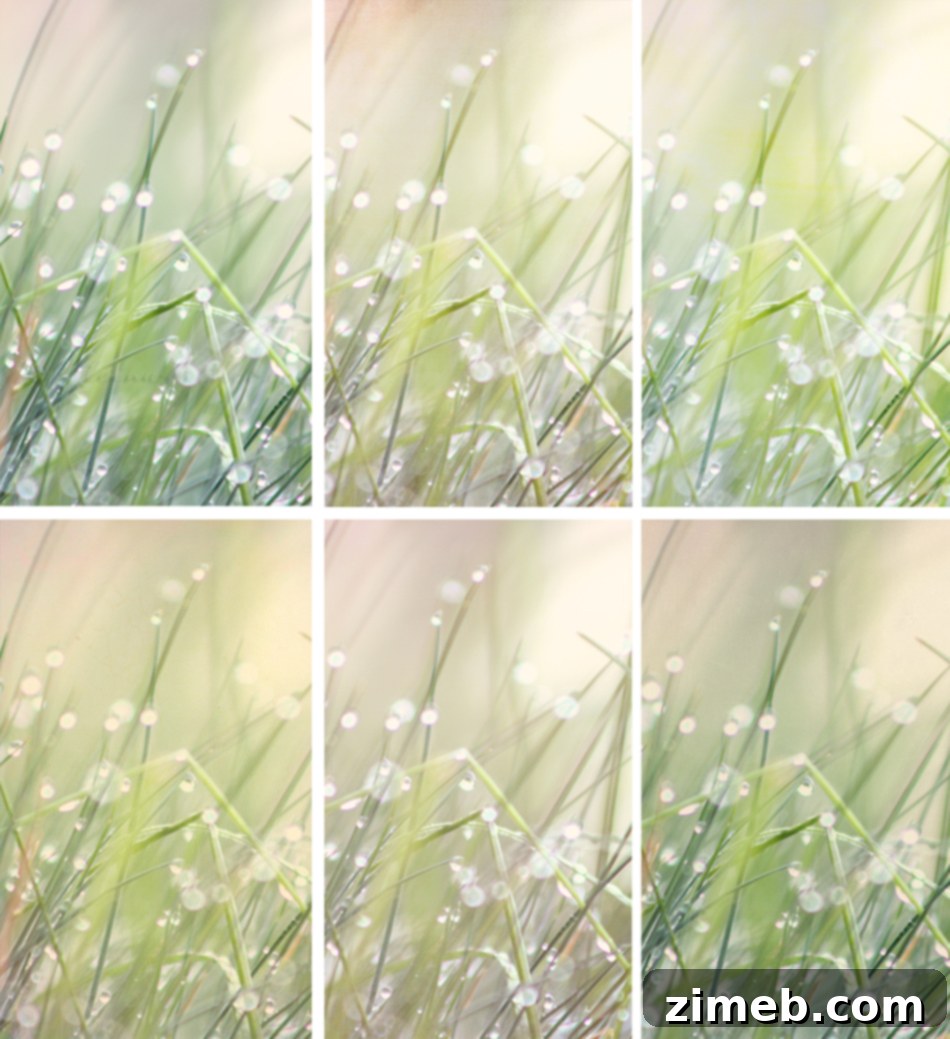
For our first application, I introduced one of the Illusions Textures, setting its blending mode to ‘Soft Light’ and maintaining 100% opacity. The ‘Soft Light’ blending mode is a fantastic choice for adding subtle enhancements, gentle contrast, and a touch of color saturation without overpowering the original image. It works much like applying soft light to a scene, making the colors richer and the tones deeper, while allowing the underlying details of the photograph to shine through. At full opacity, this texture introduces a distinct artistic layer, yet its gentle blending mode ensures it integrates harmoniously, creating a warm, inviting glow. This technique is perfect when you want to add character without completely altering the scene.
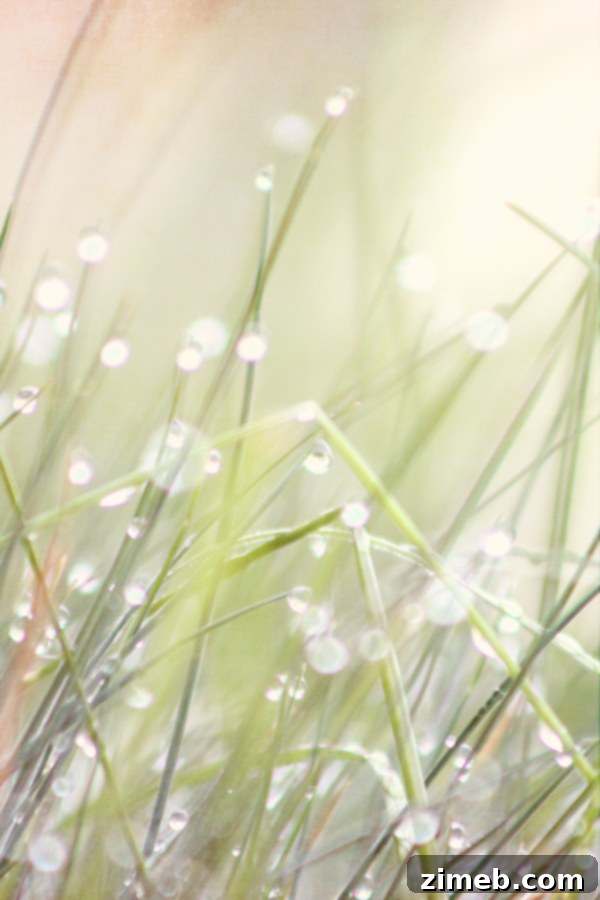
Texture #2: Vibrant Impact with Vivid Light
Next, I applied a second texture, this time utilizing the ‘Vivid Light’ blending mode with an opacity of 50%. ‘Vivid Light’ is a much more intense blending mode, capable of dramatic changes in color, contrast, and brightness. It often produces a very vibrant, almost hyper-real effect. By reducing the opacity to 50%, we temper this intensity, preventing the texture from completely dominating the image. The result is a striking transformation that injects a lively energy and a pronounced artistic flair, making the colors pop and adding a dynamic, almost painted quality to the photograph. This mode is excellent for creating bold, expressive imagery, pushing the boundaries of realism for a more illustrative feel.
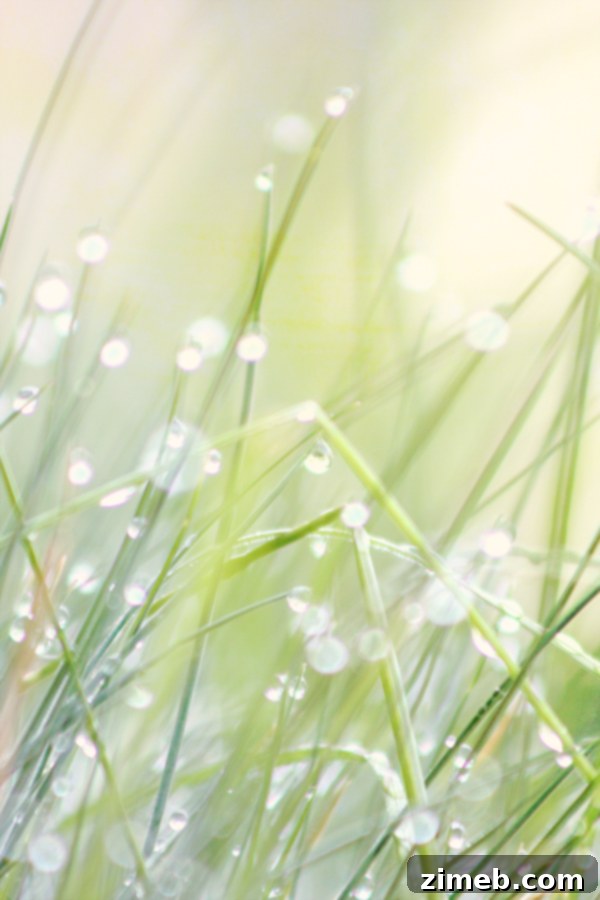
Texture #3: Classic Overlay with Normal Blending
For the third texture application, I opted for the ‘Normal’ blending mode, but significantly reduced the opacity to 29%. The ‘Normal’ blending mode simply layers the texture directly on top of the image, allowing its inherent colors and patterns to show through without complex interactions with the layers below. The key here is the low opacity. At 29%, the texture becomes a subtle overlay, a whisper rather than a shout. It gently introduces its unique watercolor pattern and color nuances, adding depth and visual interest without aggressively altering the underlying photograph. This technique is perfect for adding a delicate artistic touch, simulating a fine art print on textured paper, and is often a starting point for more complex layering.
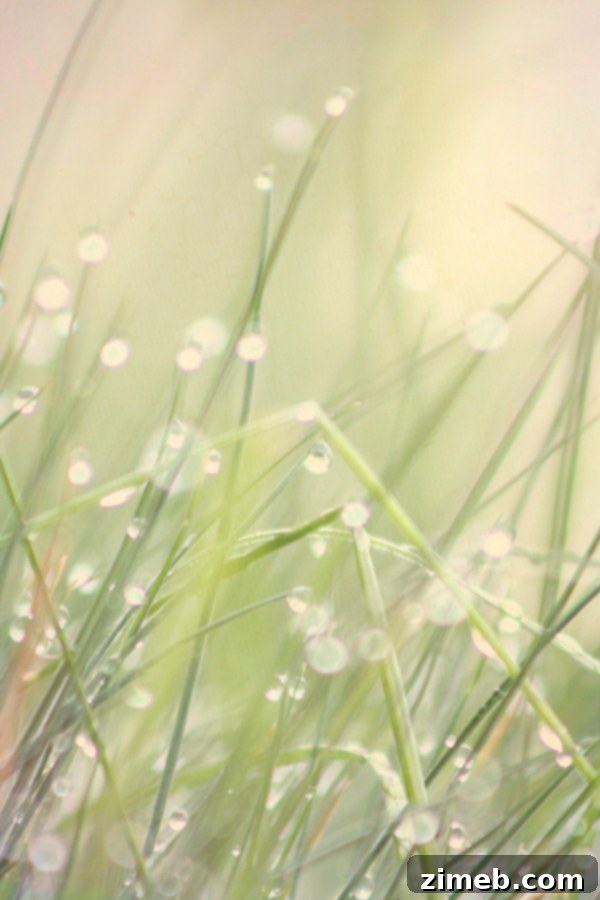
Texture #4: Brightening and Lifting with Lighten Blending
Finally, the fourth texture was applied using the ‘Lighten’ blending mode, with an opacity of 33%. The ‘Lighten’ blending mode compares the pixels of the texture layer with those of the layers below and keeps only the lighter pixels. This effectively brightens the image, especially in areas where the texture has lighter tones, while allowing darker areas to remain relatively untouched or softened. At 33% opacity, this texture introduces a gentle luminosity and a diffused, ethereal quality. It can be particularly effective for creating dreamy effects, softening harsh shadows, or adding a sense of light and airiness to an otherwise dense composition, perfect for mystical or serene themes.
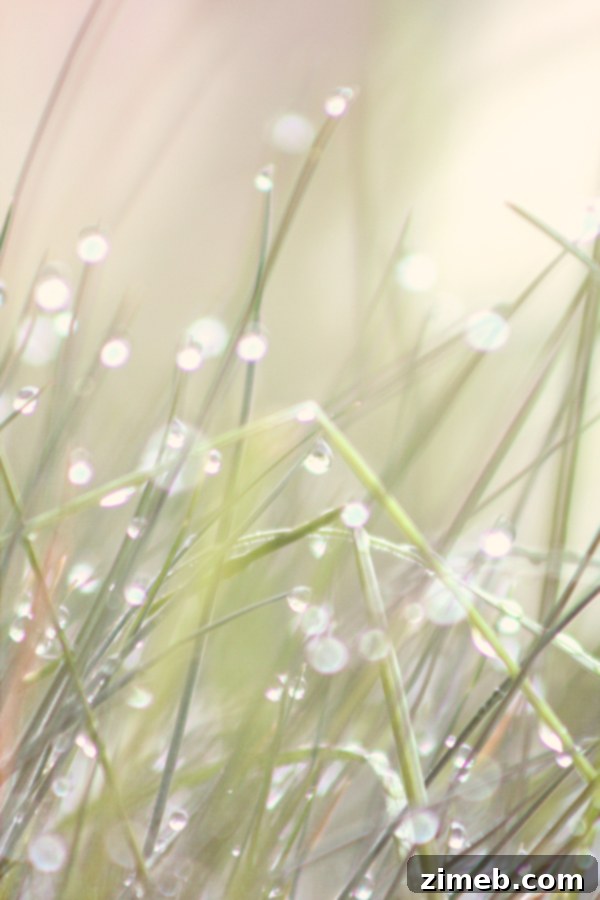
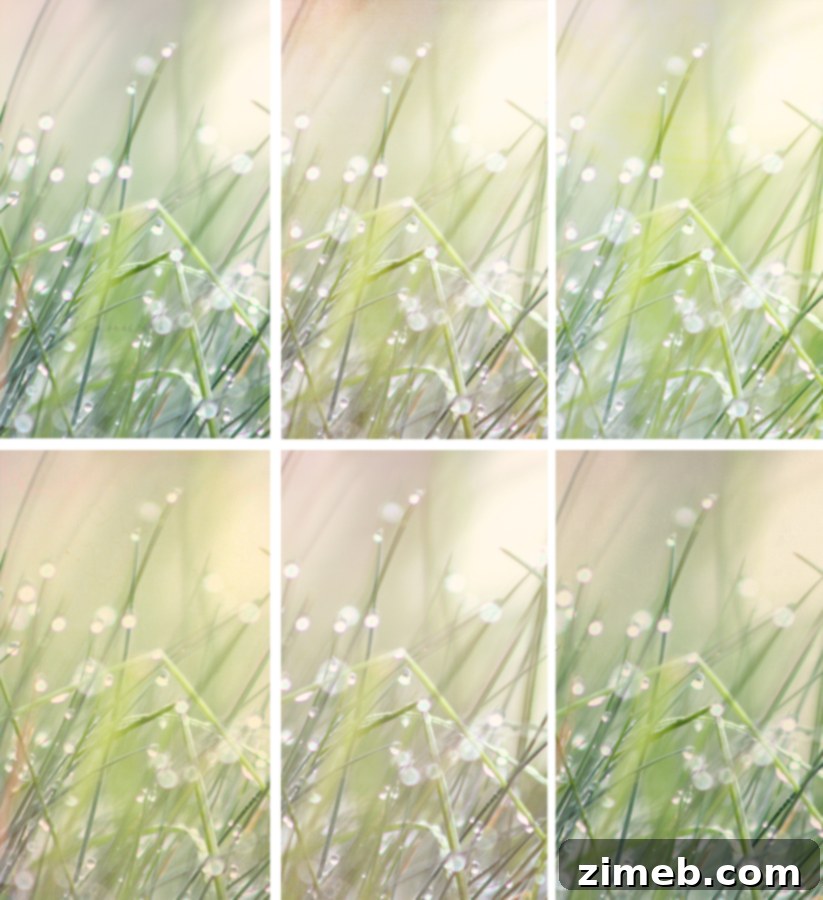
As these examples clearly demonstrate, the same base image can undergo dramatic transformations simply by changing the texture, its blending mode, and opacity. This level of control empowers photographers to create a vast array of artistic styles, from subtle enhancements to bold, expressive statements, all while maintaining the integrity of their original vision. The Illusions Textures set, with its beautiful watercolor characteristics, provides an excellent starting point for such creative explorations. The interplay of these variables means the possibilities are truly endless, limited only by your imagination.
Beyond the Set: Discovering More Free Resources
In addition to premium texture sets like Illusions, there are also fantastic free resources available to expand your creative toolkit. I also had the opportunity to try out a wonderful free Sandblast texture, which you can easily pick up HERE. Free textures are an excellent way to experiment with different styles and effects without any initial investment, allowing you to discover what resonates best with your artistic vision. The Sandblast texture, for instance, introduces a fine, gritty detail that can add a unique aged or distressed look to photographs, perfect for giving an image more character or a vintage feel. It’s a great complementary texture to the softer, watercolor effects of the Illusions set, offering a different textural dimension to your work.
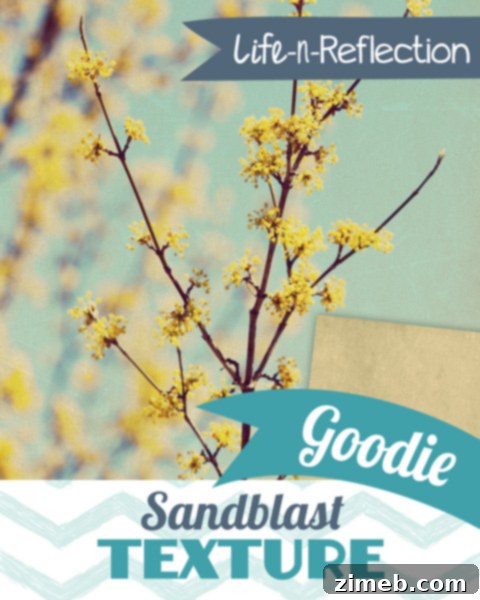
A glimpse of the intriguing Sandblast texture.
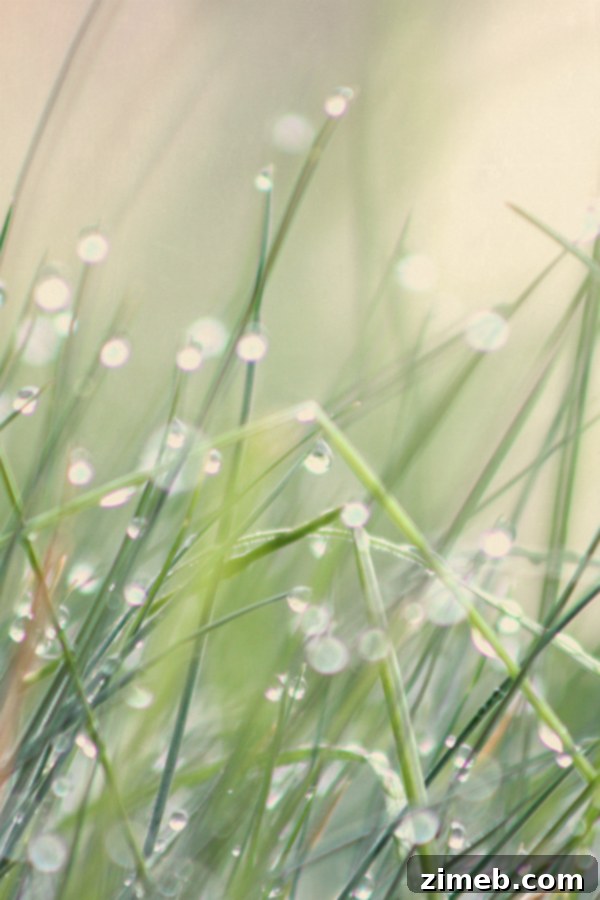
When applied to an image, the Sandblast texture can create a powerful effect. In this example, I used the ‘Multiply’ blending mode with an opacity of 26%. The ‘Multiply’ blending mode darkens the image by multiplying the luminosity values of the texture with the base layer, creating deeper shadows and richer colors. At 26% opacity, the sandblast effect is present but not overwhelming, adding a subtle layer of depth and ruggedness without obscuring the main subject. This creates a more dramatic and atmospheric feel, highlighting the versatility of how even a simple free texture can significantly enhance an image and evoke a specific emotional response from the viewer.
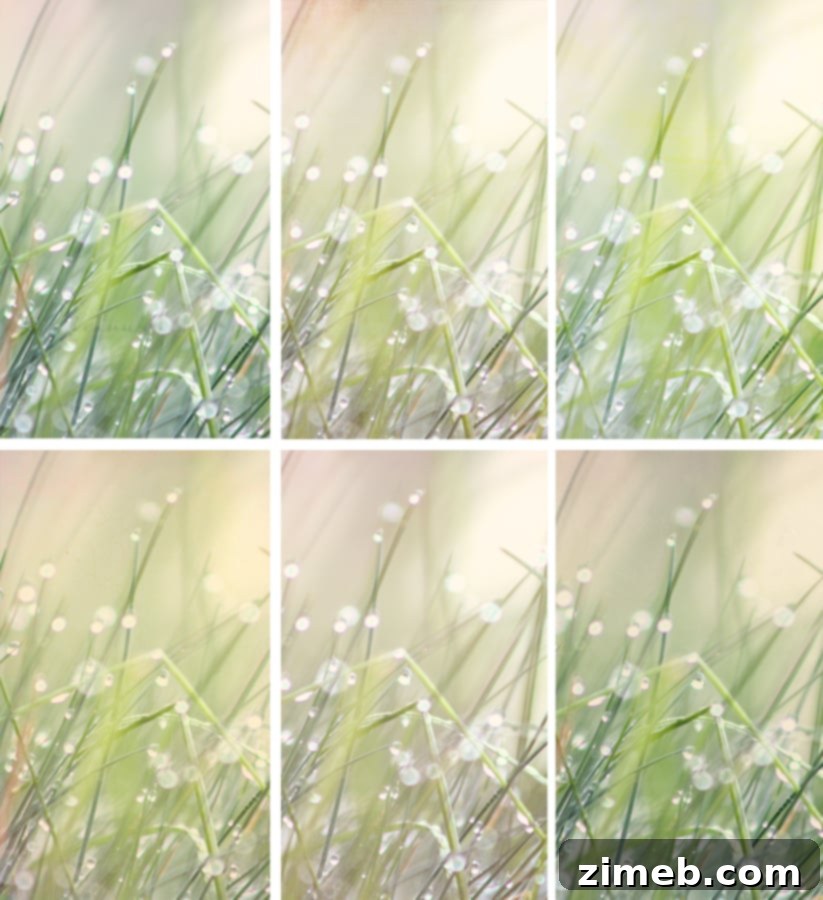
Inspiring Creative Decor: Textures Beyond Digital
The creative applications of these textured images extend far beyond the digital screen. As I’m currently decorating a new home, I’ve been actively seeking unique artwork to print on canvas. The stunning visual depth and artistic quality achieved with these textures, particularly a carefully curated collage showcasing the various Illusions Textures, would be absolutely breathtaking in a prominent space like a stairwell. Imagine a series of photographs, each imbued with a different texture, blending mode, and color palette, all unified by the artistic theme. This kind of personalized art installation not only adds visual interest but also injects a unique personality and mood into a living space, telling a story through artistic expression rather than conventional prints.
I firmly believe that such a collage would add the perfect mood and sophisticated artistic flair to that area of the house, transforming a functional space into an engaging gallery. It’s a testament to how digital tools can inspire tangible, beautiful elements in our physical environments, proving that digital artistry holds immense value in tangible decor. The ability to create custom, unique pieces tailored exactly to your aesthetic is truly empowering.
Embark on Your Texture Journey
Whether you’re looking to add a subtle artistic touch to your portraits, infuse your landscapes with a dramatic atmosphere, or create unique digital art pieces, exploring textures and overlays in Photoshop is an immensely rewarding endeavor. The “Illusions Textures” set from Life n’ Reflection offers a fantastic starting point for those keen to experiment with high-quality, aesthetically pleasing watercolor textures. Their versatility, combined with the power of Photoshop’s blending modes and opacity controls, provides an endless canvas for your creativity. Don’t be afraid to mix and match, layer different textures, and adjust settings until you find the perfect blend that speaks to your artistic vision.
I highly encourage you to explore the full range of textures available at Life n’ Reflection. Their collections are designed to inspire and empower photographers and artists to push the boundaries of their digital creations. Dive in, experiment with different combinations, and discover how textures can fundamentally change the way you perceive and present your photographic art. The journey of transforming your images into captivating visual stories begins with a single texture and an open mind to creative possibilities.